Loading…

Your Cobalt Contract
Learn how your Cobalt contract works.
:::info This page provides an overview of terms related to your organization’s contract with Cobalt. For detailed information, read our Terms & Conditions.
:::
Learn what to expect when your organization’s contract is active or expires.
When Your Contract is Active
Once you’ve signed a contract with Cobalt and purchased credits, you get access to our Pentest as a Service (PtaaS) platform. You can start using your credits from the start date of your contract. Credits are not available prior to that date.
When your organization’s contract is active, you have full access to the platform, as determined by your user role. If your role allows, you can:
- Launch pentests to test your assets.
- Remediate findings and submit them for retest.
- View and download pentest reports once they’re ready.
- Collaborate on pentests.
- Use other platform features, as determined by your PtaaS tier.
:::tip Tip
To renew your contract, reach out to your Customer Success Manager orsupport@cobalt.io.
:::
When Your Contract Expires
When your organization’s contract is about to expire, we notify you in advance. Organization users get notifications reminding them to renew the contract.
- Be sure to start your pentests at least 30 days before your contract expires, if you have credits remaining.
- The standard testing period is 14 days. It may vary depending on the pentest scope and other factors.
- Submit your findings for retest at least 10 days before your contract expires. Learn more about the free retesting duration.
- Download the data you need before we revoke your access to the platform.
After the contract expiration date, a 15-day grace period starts.
- Within the grace period, you still have access to the platform. Be sure to download the data you need within this time frame.
- Your remaining credits expire.
- You can no longer submit pentests for review or findings for retest.
Once the grace period is over, we revoke access to the platform from all organization users. If you renew your contract, you’ll get full access to the platform and your organization data.
:::tip Tip
To renew your contract, reach out to your Customer Success Manager orsupport@cobalt.io.
:::
Download Your Organization’s Data
To export data for your organization, you can:
Use the Cobalt API
Read our API documentation for details. You can send API requests to retrieve the following data:
- Pentests
- Engagements
- DAST
Manually download data in the Cobalt app
Select the key next to each item below for specific instructions.
All findings for a pentest:
- On the pentest page, navigate to the Findings tab.
- To clear all filters, select Clear all.
- Select Download.
A pentest report:
- On the pentest page, navigate to Report.
- For Comprehensive and In-House pentests, select the report type.
- Select Download.
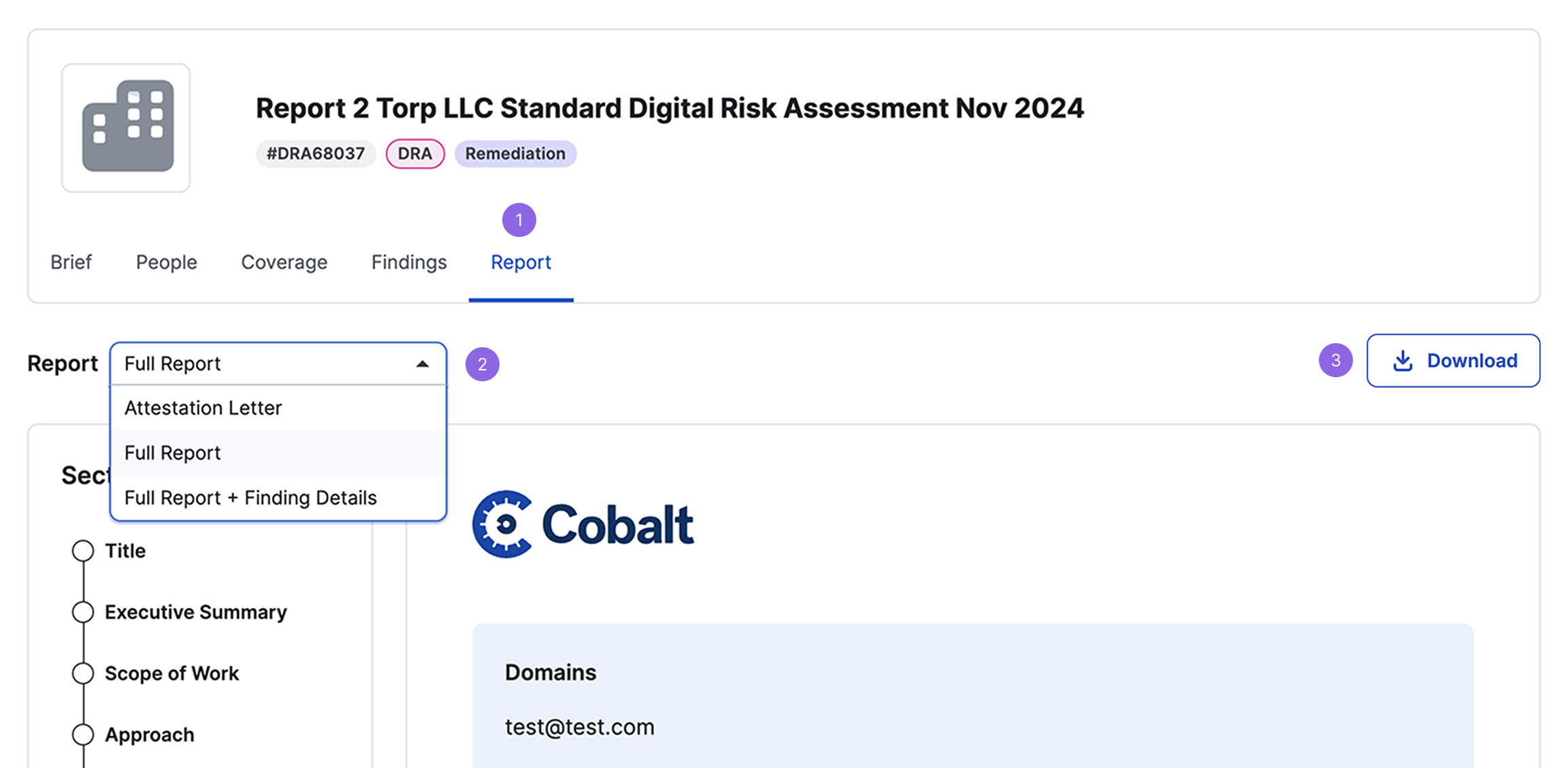
An engagement report:
- On the engagement page, navigate to the Report tab.
- Select the report type.
- Select Download.
All findings across different test types:
- On the main Findings page, apply any filters as needed.
- Select Download.
All Attack Surface domains:
- On the Attack Surface page, select a domain.
- Filter targets by Seen, Unused, or All, and apply any additional filters as needed.
- Select Download CSV.
A DAST report:
- On the DAST Scanner page, navigate to the Targets tab.
- For any one target, select Download.
- Select from a list of report types to download.
- The same option is available on the Scans page and individual scan details page.
Insights:
- On the Insights page, apply any filters as needed.
- Select Download.
Credit ledger:
- On the Credits page, select Download CSV.